TTS Extension
TTS extension using Google Cloud TTS for natural audio from highlighted text.
Screenshots
Overview
TTS Extension is a browser add-on that leverages Google Cloud's advanced text-to-speech engine to deliver exceptionally natural audio from any highlighted text. By selecting a passage on a webpage, users can instantly generate lifelike voice output, enhancing the reading experience with clarity and realism. This tool is particularly useful for those who need high-quality audio for extended reading sessions, proofreading, or accessibility purposes. The integration with Google Cloud ensures consistent performance and a variety of voice options, making it a reliable choice for individuals seeking a seamless, natural-sounding alternative to traditional screen readers or robotic voices.
How to Use
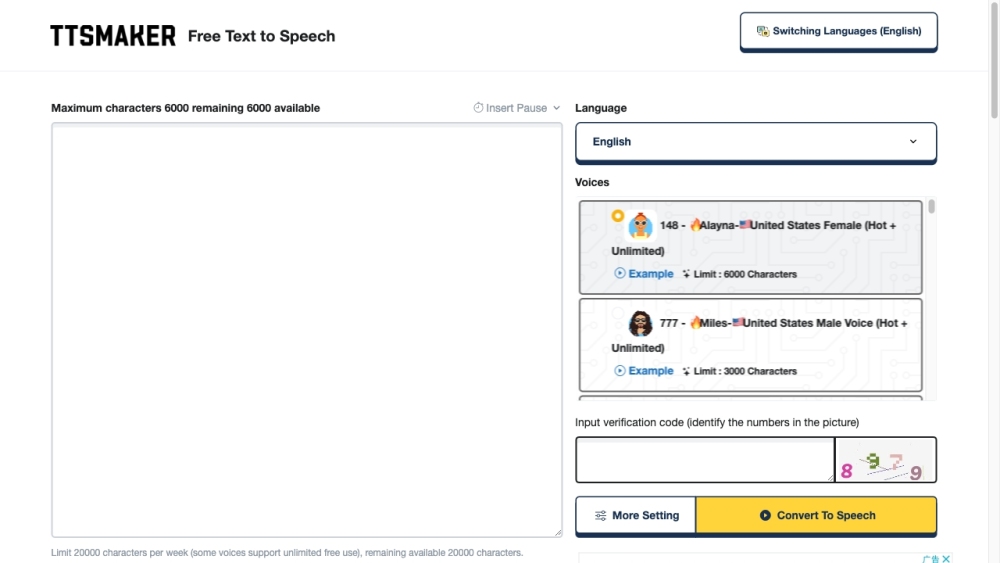
After installing the TTS Extension, highlight text on any webpage and click the extension icon or use a keyboard shortcut. The selected text is converted to natural-sounding audio using Google Cloud TTS. You can preview the audio directly in the extension popup before downloading or sharing it.
Core Features
Use Cases
- 1 Listen to articles and documents instead of reading them
- 2 Create audio versions of written content for accessibility
- 3 Learn pronunciation of foreign languages
- 4 Proofread written content by listening to it
Frequently Asked Questions
Do I need a Google Cloud account to use this extension?
What voices are supported?
Is there a character limit?
How do I read aloud the selected text?
How do I download the selected text as an MP3 file?
Quick Info
- Category
- Voice Generation & Conversion
- Subcategory
- AI Text-to-Speech
- Rating
- 5.0 / 5.0