Ethertext
AI-powered clipboard for text transformation and productivity.
Screenshots
Overview
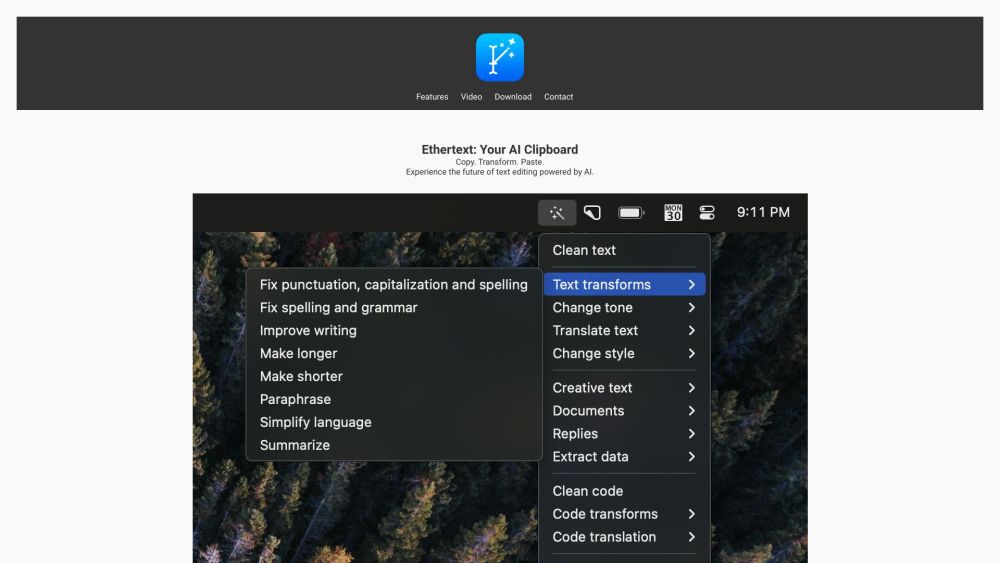
Ethertext is an AI-powered clipboard tool that enhances everyday text handling by allowing users to transform and manipulate content on the fly. Whether summarizing, rewriting, translating, or formatting text, it streamlines quick productivity tasks within a simple clipboard interface. Useful for writers, developers, and office professionals, Ethertext reduces friction in everyday digital communication. With its focus on transformation and efficiency, it delivers instant assistance without breaking concentration.
How to Use
Activate Ethertext as your clipboard manager. Copy any text, then open the tool to choose from AI transformations like summarizing, rewriting, or translating. Paste the transformed result anywhere you need, streamlining text editing and enhancing your daily productivity.
Core Features
Use Cases
- 1 Ethertext's Use Cases
- 2 Transforming text to different tones and styles
- 3 Debugging and translating code snippets
- 4 Memorizing and recalling important text
- 5 Transcribing voice recordings
- 6 Capturing and extracting text from screenshots
Frequently Asked Questions
What AI models does Ethertext support?
What are some of the key features of Ethertext?
What are the system requirements for Ethertext?
How do I add my API keys for OpenAI, Google Gemini, or Anthropic?
How do I use Ollama with Ethertext?
Quick Info
- Category
- Writing & Editing
- Subcategory
- AI Writing Assistants
- Added on
- Dec 12 2023
- Monthly Visits
- --
- Rating
- 5.0 / 5.0
- Saved
- 2